What is two-factor authentication?
Two-factor authentication provides an extra layer of security, making it more difficult for unauthorized individuals to access information. After enabling two-factor authentication, users cannot log in with just their username and password. They will need to enter their account credentials and then complete a second "verification factor" to successfully log in.
Mail2000 offers three types of two-factor authentication. You can choose one of the authentication methods based on your situation.
The two-factor authentication methods are:
- @Mail2000: After entering the account password, a random set of numbers will appear. At this point, you need to open @Mail2000 on the paired device and select the corresponding number to successfully log in.
- MailCloud Messenger: After entering your account password, you will need to open MailCloud Messenger on the linked device and enter the randomly generated 6-digit number that pops up in order to successfully log in.
- Google Authenticator: After entering the account password, you need to open the Google Authenticator App and enter the randomly generated 6-digit number that appears in order to successfully log in.
Setting up two-factor authentication
Enable two-factor authentication through @Mail2000.
Preparation before setting:
- Download the @Mail2000 App.
AndroidiOS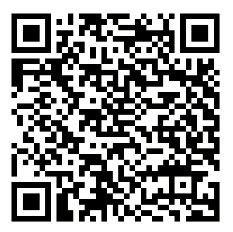
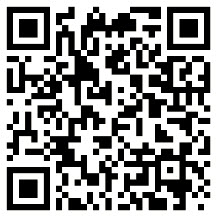
- Log in to your account on the @Mail2000 App.
SettingsProcess:
- Go to the "Settings" > "Records and Security" > "Two-Factor Authentication" page, and select "Use @Mail2000".
- At "Step One On the "Bind Device" page, select the device you wish to bind and press "Send Notification." The bound device will be used in the future to receive OTP notifications.
Please note that if you do not see the device you wish to bind, it may indicate that you have not logged in to @Mail2000 on that device yet.
- On the "Step 2, Device Binding" page, a set of numbers will appear. Mail2000 will push this number to the device you selected in step one. Please open @Mail2000 on the bound device at this time, and click on the same number displayed on the page to complete the binding.
AndroidiOS - After the binding process is completed, the information of the bound device will appear. If you need to change the bound device, please click on "Change Device" and go through the binding process again.
- After setting up, every time you log in to Mail2000, the webpage will prompt you to enter an authentication code. Simply open @Mail2000 and click on the corresponding number on the screen to log in to Mail2000.
How do you start the Daemon OTP?
After activating Daemon OTP, approval connection needs to be clicked on @Mail2000 before receiving emails via IMAP4 or POP3. Once the connection is approved, there is no need for re-approval within 24 hours.
This feature is suitable for users with higher cybersecurity requirements.
- Complete the dual authentication setup for @Mail2000.
- Please enable the option "Dual authentication is required for sending and receiving messages" on the binding completion page.
- Before receiving emails via IMAP4 or POP3 (such as through Outlook), simply click "Approve" on the bound mobile phone to start receiving emails.
Enable two-factor authentication with MailCloud Messenger.
Preparation before setting:
Search for "MM" on Google Play or the App Store to download and install MailCloud Messenger. After installation, click on the application icon to enter the login screen.
You too.You can download from this link.。
SettingsProcess:
- Navigate to "Settings" > "Privacy and Security" > "Two-Factor Authentication" and select "MM".
- Open the MM APP.
- Click on [Other].
- Select [Bind Device].
- Enter the device verification code into the dual authentication setup page of the current Mail2000.
- After clicking on "Settings," proceed to complete the device pairing.
- After binding is completed, the page will display that the MM APP has successfully bound device information:
- After entering your account password on the login screen, MailCloud Messenger will display an OTP notification. You can choose to enter a 6-digit password or click "Yes" to log in directly.
- You can also remove the connected devices: click to clear the currently bound devices.
- A prompt will be given before clearing.
Enable two-factor authentication through the Google Authenticator App.
SettingsProcess:
- First, please install the Google Authenticator APP on your phone.
- Please go to "Settings" > "Records and Security" > "Two-Factor Authentication" and select "Google Authenticator," then make sure you have downloaded the Google Authenticator app.
- In the second step "Setting Up Key", a QR code and a password will appear.
- Open Google Authenticator and click on the + icon at the bottom right corner. Scan the QR code that appears in step 3 or manually enter the key password below to complete the setup. At this point, a new set of two-factor authentication codes will appear on the Google Authenticator app screen, labeled as Mail2000 (email@yourdomain.com.tw).
5. In the third step "Verify Key", enter the 6-digit code from the Google Authenticator App into the input box and click confirm. If the verification code is correct, the setup can be completed.
6. After setting up, every time you log in to Mail2000, the webpage will prompt you to enter an authentication code. Simply open the Google Authenticator APP and enter the 6-digit key password generated at that moment to log in to Mail2000.
Set up common devices.
If you want to add a device to my frequently used devices, you need to first enable and set up two-factor authentication. Once the two-factor authentication is set up, you will see an option to "Add to frequently used devices" on the page where you input the two-factor authentication code for logging into your account. Simply check the box and click on login to add the device to "My frequently used devices".
| Web | iOS | Android |
How to use multiple two-factor authentication methods
Preparation before setting up:
- Manager sets mandatory enablement of all dual authentication methods.
- In "Mailbox Security > Two-Factor Authentication," choose one or more types of two-factor authentication, and click the "Settings" button on the right to complete the two-factor authentication setup according to the steps. The completed two-factor authentication method will be displayed as "Configuration completed」。
- Click on the button on the left side to select the desired two-factor authentication method to be set up (only options with two-factor authentication methods that have been set up can be selected).
Sign inProcess:
- After entering the account username and password and clicking on login, the page will display the default two-factor authentication method. If you need to switch to another two-factor authentication method at this point, you can click on "Select another way to log in."
- After clicking on "Choose another login method," you can reselect the completed two-factor authentication method.
Related Questions
Setting Up Two-Factor Authentication for @Mail2000 Old Version
To enhance the security of your personal mailbox, Mail2000 has introduced a two-factor authentication mechanism. If you enable two-factor authentication, when logging into the Mail2000 system, you will need to enter the authentication code pushed to your registered device for the second layer of verification before you can log in, providing an extra layer of protection to reduce the risk of your account being compromised. This feature pushes the authentication code through the @Mail2000 APP, and you only need to enable two-factor authentication through the APP to complete the registration of the pushing device.
- Download and install the Mail2000 application:
- Please download the iOS device app through Apple's App Store.
- Please download the Android device through the Android Market.
- Please download the iOS device app through Apple's App Store.
- After successfully installing the Mail2000 application on your mobile device, please proceed with the following settings:
- iOS
- Click on the Mail2000 icon on the desktop to enter the program.
- Please set up login information and enable the "two-factor authentication" option, then save to complete the registration process.
- Click on the Mail2000 icon on the desktop to enter the program.
- Andriod
- Click on the Mail2000 icon on the desktop to enter the program.
- Please set up login information and enable the "two-factor authentication" option. Once saved, the registration process will be completed.
- Click on the Mail2000 icon on the desktop to enter the program.
Restrictions:
To ensure the security of your account, dual authentication is limited to one registered device only. If you need to make changes, please first deactivate the device that is already registered.