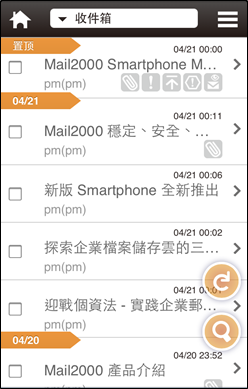
Install @Mail2000
This app currently supports iOS and Android operating systems. Please refer to the following instructions for setup.
- Installation
- iOS: iOS users, please connect to App Store Download, or scan the QR code below directly.

- Android: Android users please connect toGoogle PlayDownload, or scan the QR code below directly.

- Please refer to the user manual for instructions on installing the @Mail2000 application on your mobile phone.
- After installation is complete, you can start using it.
Login Steps
| 1. Open the @Mail2000 APP. |
|
|
| |
Android |
iOS |
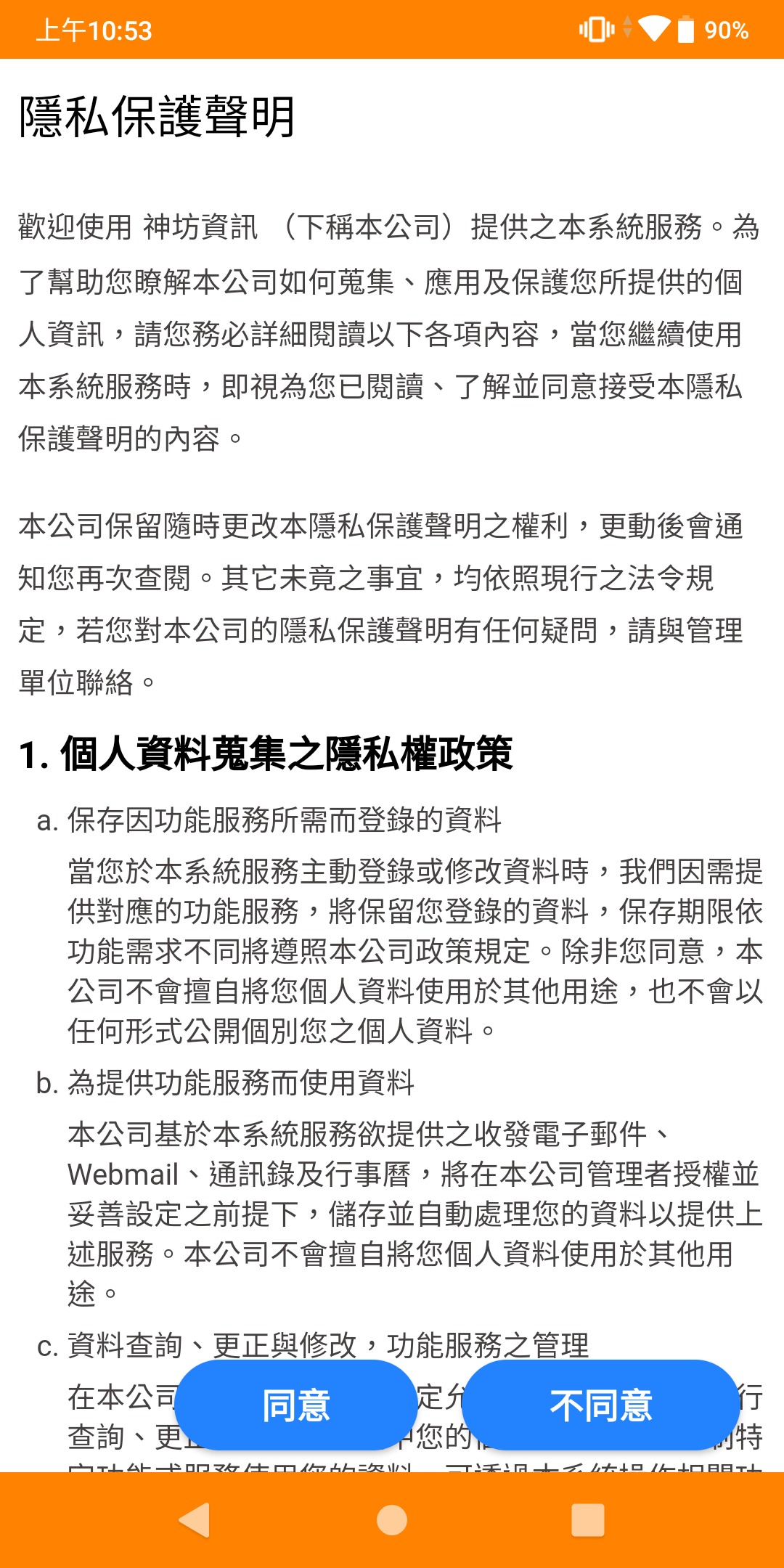
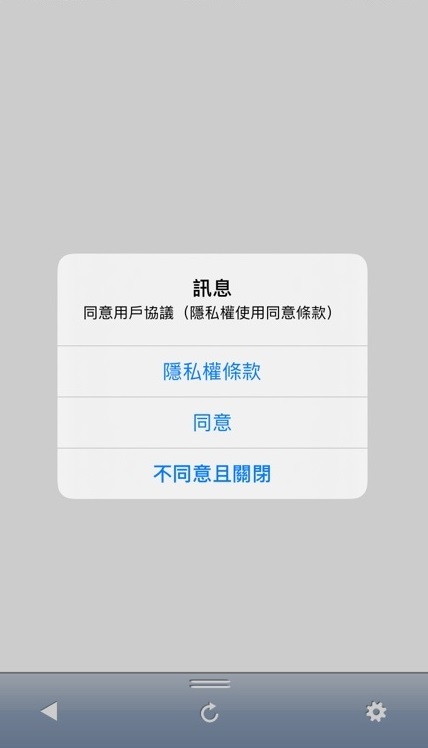
| 2. Upon entering, the privacy policy will appear. To use @Mail2000, please choose to agree. |
 |
 |
| |
Android、iOS |
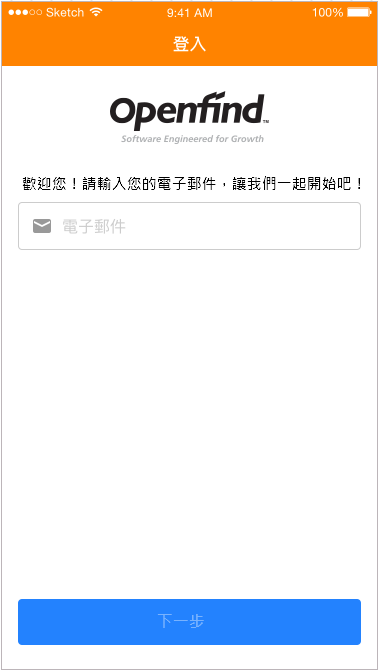
| 3. Enter Email Account |
 |
| |
Android |
iOS |
|
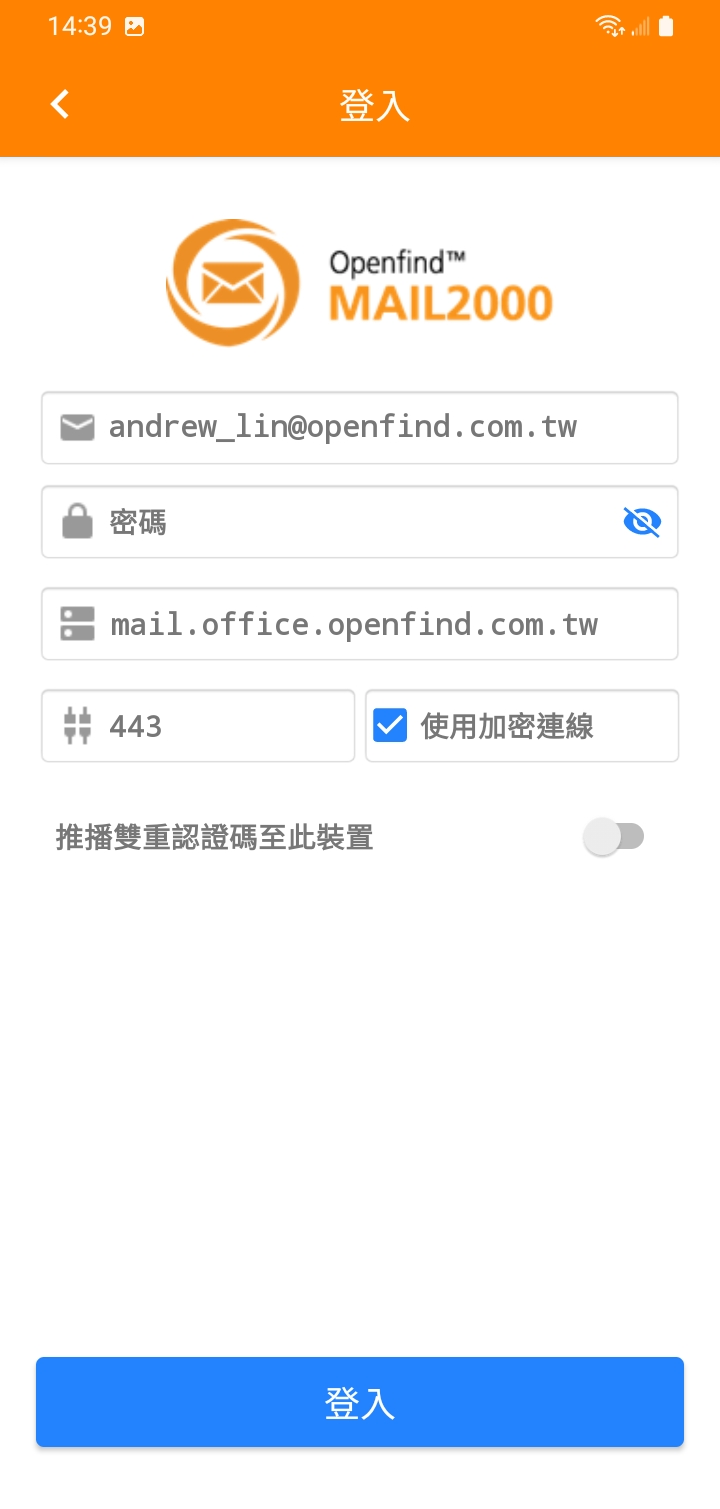
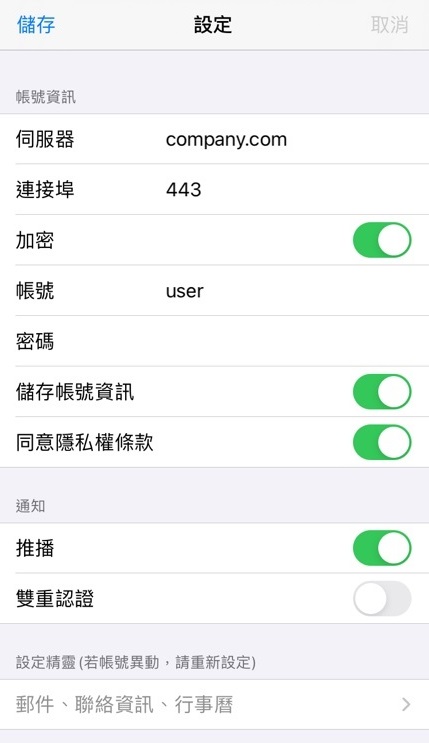
4. After entering the login screen, input the password, and then click on "Login".
It is recommended to check the option for using encrypted connections.
(The host name will be automatically determined, and if any errors are found, then changes will need to be made separately.)
|
 |
 |
|
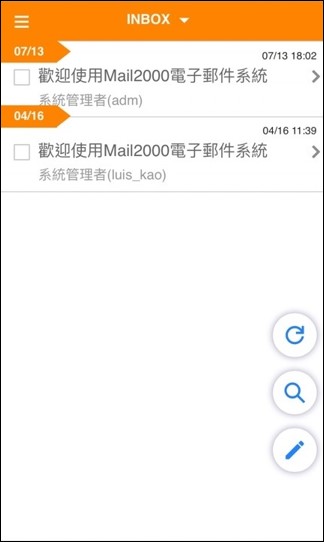
5. You can start operating after logging in.
|
|
Version prior to 3.1.45 (exclusive)
| |
|
|
| 1. Open the @Mail2000 APP. |
|
|
| |
Android |
iOS |
| 2. Upon entering, the privacy policy will appear, please choose to agree in order to use @Mail2000. |
|
|
| |
Android |
iOS |
| Select the service you want to log in to. |
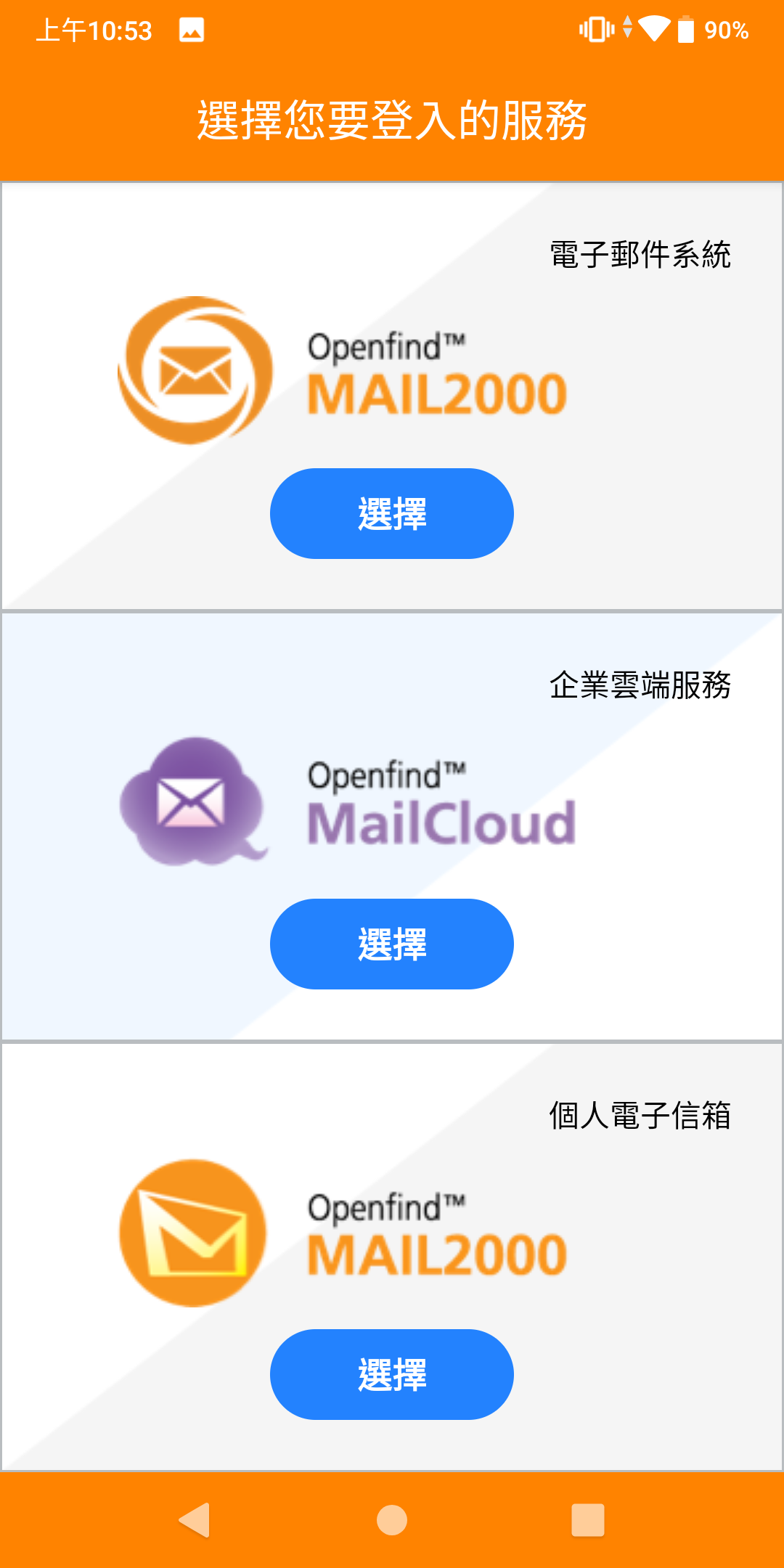 |
This process does not exist. |
| |
Android |
iOS |
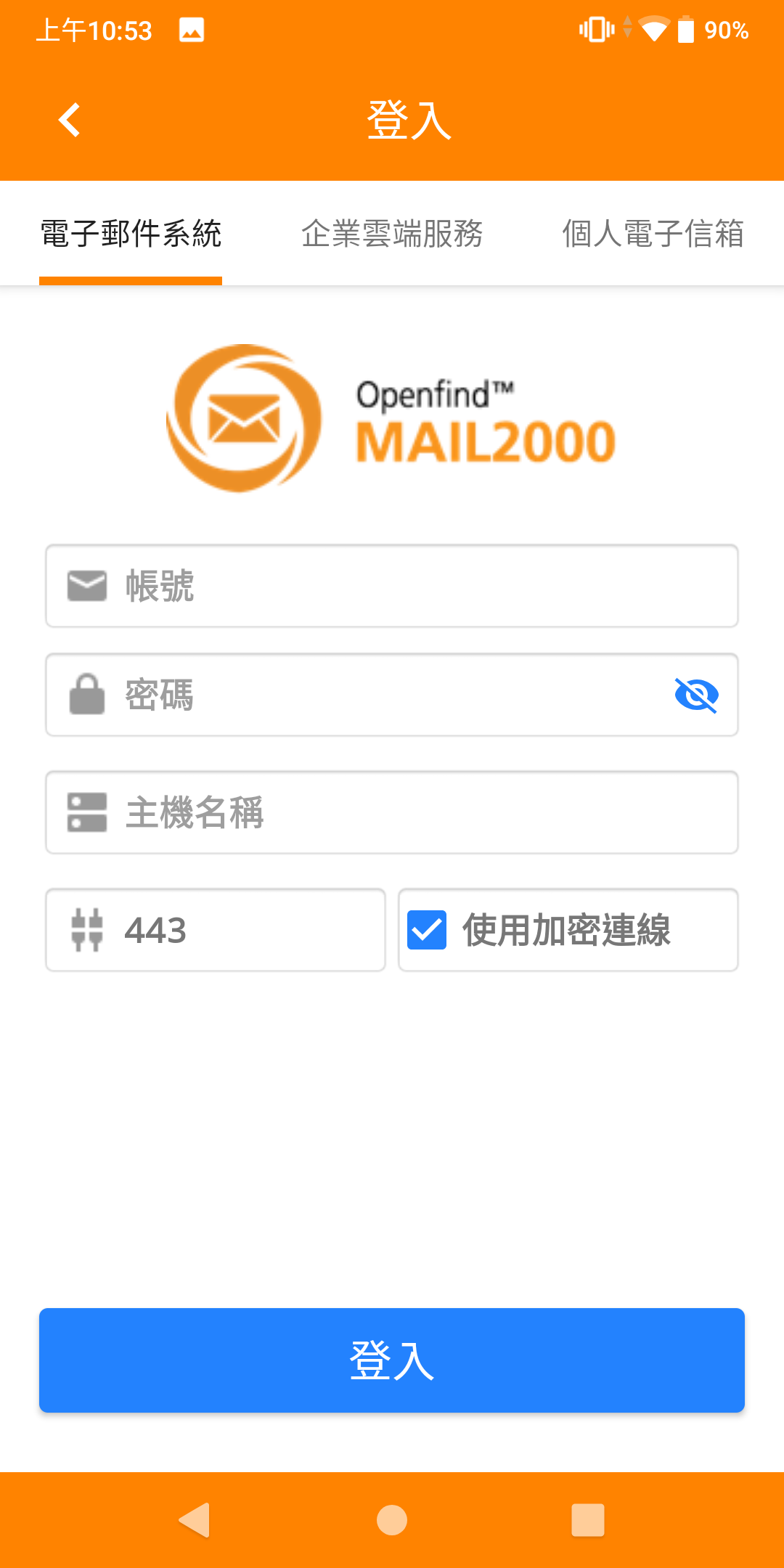
| 3. After entering the login screen, input the account, password, and hostname. It is recommended to select the option for using encrypted connection. Once the account and password have been entered, please click on "Login." |
 |
|
|
4. You can start operating after logging in.
|
|
Versions prior to 3.0.8 (exclusive)
- Open the browser on your mobile phone.
- Please enter the complete URL of your Mail2000 email system in the address bar and proceed.
- After entering the login screen, enter your account and password. Users can choose to "Remember Account" or "Remember Password". After entering the account and password, please click on "Login".
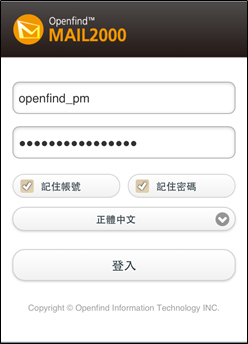
- After logging in, you will enter the user's self-set "default homepage" mailbox, and you can start operating Mail2000 according to the on-screen instructions.