- How to add a group?
- In the "Contacts" section of the left-hand sidebar menu, click on "Contacts" to access the contacts page.
- Open the dropdown menu for "New" in the toolbar, then select "Group" to enter the page for adding a new group.
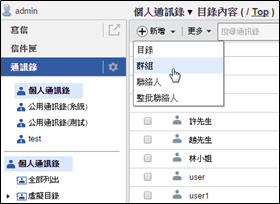
- Please enter the name of the new group, click "OK", and the action of adding a new group will be completed.
- How to add/modify data in a group?
- In the "Contacts" section on the left-hand side menu, click on "Contacts" to access the page of contacts.
- Click on the group name of the content data you wish to modify to access the page of that group's content.
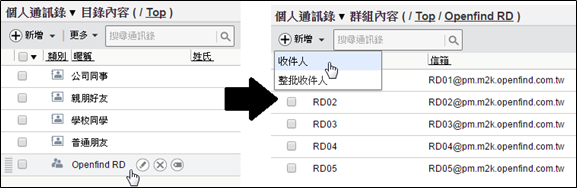
- Add recipients to the group: Use the "Add" dropdown menu in the toolbar, select "Recipient" or "Bulk Recipients".
- Remove recipients from the group: After selecting the recipients, click on "" in the toolbar.
- Send an email to recipients in the group: After selecting the recipients, use the dropdown menu under the "Compose" option on the toolbar to add the recipients to the email list as needed.
- To move contacts from the directory to a group, please check the contacts you want to move, drag them to the specified group in the left-side menu or directory list content.

- How to delete a group?
- In the "Contacts" section of the left-hand side menu, click on "Contacts" to access the contacts page.
- Select the group you want to delete, then click " " on the toolbar to delete the group and all its associated data.
- Search for the directory where the contact is located.
If you do not know the directory where the contact you want to move is located, you can use the "Search" option on the left side of the toolbar on the contacts page; simply enter the keyword directly and click on "Search".