If you are using the lightweight version, please.Click here.Go to the lightweight version of the dual authentication tutorial article.
What is two-factor authentication?
Two-factor authentication provides an additional layer of security, making it more difficult for unauthorized individuals to access. After enabling two-factor authentication, simply using a username and password is no longer sufficient to log in. Users must also complete a second "verification factor" in addition to entering their account credentials in order to successfully log in.
Mail2000 offers three types of two-factor authentication. You can choose one of the authentication methods according to your situation.
The dual authentication methods are as follows:
- @Mail2000: After entering your account password, a random number will appear. You need to open @Mail2000 on your linked device and select the corresponding number to successfully log in.
- MailCloud Messenger: After entering your account password, you will need to open MailCloud Messenger on the registered device and enter the randomly generated 6-digit number that pops up in order to successfully log in.
- Google Authenticator: After entering your account password, you need to open the Google Authenticator app and enter the randomly generated 6-digit number that appears in order to successfully log in.
Setting up Two-Factor Authentication
Enable two-factor authentication via @Mail2000.
Preparation before setting up:
- Download @Mail2000 App.
AndroidiOS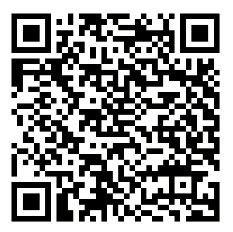
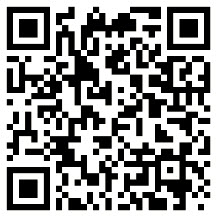
- Login to your account on the @Mail2000 App.
SettingsProcess:
- Go to "Personal Settings" > "Security Settings" > "Two-Factor Authentication" page, and choose "Use @Mail2000".
- At "Step One On the "Bind Device" page, select the device you wish to bind and press send notification. The bound device will be used in the future to receive OTP notifications.
Please note that if you do not see the device you wish to bind, it may indicate that you have not logged in to @Mail2000 on that device yet.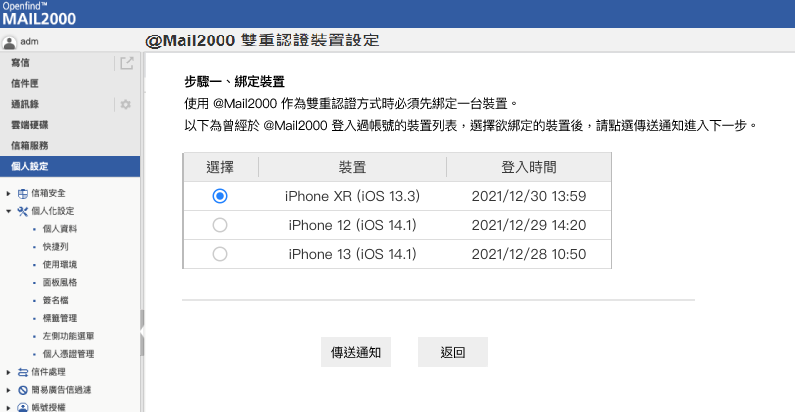
- On the "Step 2: Confirm if Binding is Successful" page, a set of numbers will appear. Mail2000 will push this number to the device you selected in Step 1. Please open @Mail2000 on the device you are binding at this time, and click on the same number displayed on the page to complete the binding process.
AndroidiOS - After the binding process is completed, the information of the bound device will appear. If you need to change the bound device, please click on "Clear bound devices" and then proceed with the binding process again.
- After setting up, every time you log in to Mail2000, the webpage will prompt you to enter an authentication code. At this point, simply open @Mail2000 and click on the corresponding number on the screen to log in to Mail2000.
How do you start Daemon OTP?
Please make sure that the manager has enabled Daemon OTP. Before receiving emails via IMAP4 or POP3, you need to click on "Approve Connection" in @Mail2000 to start receiving emails. Once the connection is approved, there is no need to approve it again within 24 hours.
This feature is suitable for users with higher cybersecurity needs.
- Complete the dual authentication setup for @Mail2000.
- Enable the option "Dual Authentication Required for Send/Receive Services" on the binding completion page.
- Before receiving emails via IMAP4 or POP3 (such as through Outlook), simply click on "Approve" on the registered mobile phone to start receiving emails.
Enable two-factor authentication with MailCloud Messenger.
Preparation before setting up:
Search for "MM" on Google Play or the App Store to download and install MailCloud Messenger. After installation, click on the application icon to access the login screen.
You too.You can download the file from this link.。
SettingsProcess:
- Go to "Personal Settings" > "Mailbox Security" > "Two-Factor Authentication" and select "Use MailCloud Messenger".
- Open the MM APP.
- Click on [Other].
- Select [Bind Device].
- Enter the device verification code into the dual authentication setup page of the current Mail2000.
- After clicking on "Settings," proceed to complete the device pairing.
- After binding is completed, the page will display the device information that has been bound to the MM APP:
- After entering your account information on the login screen, MailCloud Messenger will display an OTP notification. You can choose to enter a 6-digit numerical password or click "Yes" to log in directly.
- You can also remove the currently bound device by clicking to clear it.
- Prompt will be given before clearing.
Enable two-factor authentication with the Google Authenticator App.
SettingsProcess:
- First, please install the Google Authenticator app on your phone.
- Go to "Settings" > "Mailbox Security" > "Two-factor Authentication" and select "Use Google Authenticator".
- Click on "Generate Key".
- After clicking, a prompt will appear stating "Generate a dual authentication key, App settings required, confirm generation?" Please confirm at this time that you have downloaded the Google Authenticator App. After confirming, click "OK".
- A QR code and a string of password appeared.
- After clicking, a prompt will appear stating "Generate a dual authentication key, App settings required, confirm generation?" Please confirm at this time that you have downloaded the Google Authenticator App. After confirming, click "OK".
- Open Google Authenticator and click on the + in the bottom right corner. Scan the QR code that appears in step 3 or manually enter the key password below to complete the setup. At this point, a new set of two-factor authentication digits will appear on the Google Authenticator app screen, labeled as Mail2000 (email@yourdomain.com.tw).
7. After setting up, every time you log in to Mail2000, the webpage will prompt you to enter an authentication code. Simply open the Google Authenticator app and enter the 6-digit key password generated at that moment to log in to Mail2000.
Set up common devices.
To add a device to my frequently used devices, you need to first enable and set up two-factor authentication. Once the two-factor authentication is set up, you will see an option to "Add to frequently used devices" on the page where you enter the two-factor authentication code for logging into your account. Simply check the box, then click login to add the device to "My frequently used devices".
| Web | iOS | Android |
How to use multiple two-factor authentication methods
Preparation before setup:
- Managers set mandatory enablement of all dual authentication methods.
- In "Mailbox Security > Two-Factor Authentication," choose one or more methods of two-factor authentication, and click the "Settings" button on the right to complete the two-factor authentication setup according to the steps. The completed two-factor authentication method will be displayed as "Settings have been configured.」。
- Click on the button on the left side to select the desired two-factor authentication method (only options that have been set up can be selected).
Log inProcess:
- After entering the account password and clicking on login, the page will display the default two-factor authentication method. If you need to switch to another two-factor authentication method at this point, you can click on "Select another login method".
- After clicking "Choose another login method," you can reselect the dual authentication method that has been set up.
Related Issues
Setting up Two-Factor Authentication for the old version of @Mail2000
To ensure the security of your personal mailbox, Mail2000 has introduced a two-factor authentication mechanism. If you enable two-factor authentication, when logging into the Mail2000 system, you will need to enter the authentication code pushed to your registered device for the second layer of verification before you can log in. This additional layer of protection helps reduce the risk of your account being compromised. This feature pushes the authentication code through the @Mail2000 APP, and you only need to enable two-factor authentication through the APP to complete the registration of the push device.
- Download and install the Mail2000 application:
- Please download the iOS device through Apple's App Store.
- Please download the Android device from the Android Market.
- Please download the iOS device through Apple's App Store.
- After you have successfully installed the Mail2000 application on your mobile device, please proceed with the following settings:
- iOS
- Click on the Mail2000 icon on the desktop to enter the program.
- Please set up your login information and enable the "two-factor authentication" option. Once saved, your registration process will be complete.
- Click on the Mail2000 icon on the desktop to enter the program.
- Andriod
- Click on the Mail2000 icon on the desktop to enter the program.
- Please set up login information and enable the "two-factor authentication" option, once saved, the registration process will be complete.
- Click on the Mail2000 icon on the desktop to enter the program.
Restrictions:
To ensure the security of your account, dual authentication is limited to one registered device only. If you need to make changes, please first deactivate the previously registered device.