This chapter explains how to use Advanced Search.
Date range and sorting
Timezone
After entering search keywords, narrow the query further by choosing a date range. If you select a date range without keywords, all archived mail within that range is listed. If the administrator has enabled timezone-aware searches, a timezone dropdown appears on the search page for both administrators and users, as shown below:
This feature avoids missed matches caused by timezone differences. For example, when a user in the United States searches an archive hosted in Taiwan, enabling this feature lets the user set the US timezone directly — no manual conversion to Taipei time is required.
Results are retrieved according to the chosen timezone, and the dates shown also reflect that timezone.
Date range
Pick a single date and the system fills in the year, month, and day for you. Administrators can configure the default search-time range (see "7.2.12 Search-related settings" for details). The steps are:
- Hover over the start date — for example, January 1, 2021.
-
Click; the start date is set to January 1, 2021, and shown in the input field.
-
Hover over the end date. As you move toward January 15, a light-blue band highlights the range January 1 to January 15.
-
Click the date you want as the end of the range to finish the selection.
Picking a specific week fills in that week's start and end dates. Click the triangle on the left to select the whole week as the range.
Picking a specific month fills in that month's start and end dates. Select the month and click the triangle to its left to select the whole month as the range.
Picking a specific year fills in that year's start and end dates. Click the year to select the whole year as the range.
Display mode
There are two ways search results can be presented:
A. Progressive display:
- The system shows the first batch of results on the search page and reveals the rest in order.
- Progressive display is the default, but the system remembers the user's last choice.
- Sort order cannot be set in progressive display mode.
B. Full display:
- The system displays the entire result set on the search page in one pass.
-
In full display, results can be sorted by several fields — match score, sender, subject, time, message size, and so on. The options are:
Sort order Description Subject A to Z Sort by subject, ascending (A to Z). Subject Z to A As above, descending (Z to A). Sender A to Z Sort by the RFC 822 sender's email address, A to Z.
Sender Z to A
As above, Z to A.
Date newest to oldest
Sort by the time the mail was sent or received; oldest first.
Date oldest to newest
As above, newest first.
Size smallest to largest
Sort by message size; smallest first.
Size largest to smallest
As above, largest first.
Specifying search conditions
If this account has used Advanced Search before, the system remembers the previous condition settings for this section.
Mail scope

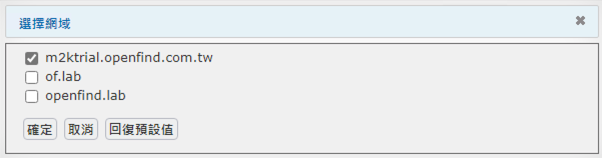
Scope |
Description |
All |
Searches all mail within your current permissions. For example, a group administrator can search the mail of their group; an organization administrator can search the entire organization's mail. |
| Domain | Restricted to "Domain administrators." When selected, a "Specify domain" condition appears so you can pick the domain to query. |
Personal |
Searches only the current user's own mail. |
Mail Flow
| Enterprise Mode | |
| SaaS Mode |
For adm@system, the "Mail Flow" option appears in Enterprise mode but is hidden in SaaS mode.
For a domain administrator in either Enterprise or SaaS mode, when "Specify domain" is set to "All domains," Mail Flow is hidden.
For a domain administrator in Enterprise or SaaS mode, when "Specify domain" is set to a subset of domains, Mail Flow is shown.
Mail Flow |
Description |
|---|---|
All |
Every kind of mail. |
Internal |
Internal-to-internal mail. |
Outbound |
Internal sender to external recipient. |
Inbound |
External sender to internal recipient. |
Mail Type

Mail Type |
Description |
||
Read-receipt requested |
Mail that requests a read receipt. |
||
With attachment |
Mail that has one or more attachments. |
||
Important |
Mail marked as high importance. |
||
Attachment identified |
Mail attachments whose detected type does not match the file extension, or which have no extension at all. |
||
Attachment encrypted |
Mail whose attachments are encrypted — e.g. encrypted archives, encrypted Microsoft Office documents, encrypted PDFs, etc. |
||
Delegated mail |
Senders and their delegates (along with the corresponding organization administrators, auditors, group administrators, and domain administrators) can search for mail sent by a delegate. |
||
Not sent to supervisor |
Mail whose recipients do not include the supervisor (the manager of the user's group or any of its parent groups). |
||
Not sent to colleagues |
Mail whose recipients do not include any colleagues (anyone in the sender's domain). |
||
Encrypted |
Mail that is encrypted. |
||
Exclude spam |
Hide spam from search results. This option only appears after configuration. |
||
Signed |
Mail that is signed. | ||
| Bcc |
Available in MailBase V6 SP2 and later.
Per-domain toggle:
Available to SOA, OA, Auditor, and DA roles only. |
Server scope (requires the Distributed Mail Archive module)
MailBase supports a multi-server architecture. Users can choose which server hosts to query and set "Advanced Search" conditions accordingly. (Only the central control server offers this option; other server roles can only search the mail archived on their own machine.) The steps are:
Search the local server only
This is the system default.
Search all servers
To search the mail archived on every server, choose "Search all servers."
Select specific servers
To search the mail archived on one or more specific servers, choose "Select specific servers" and pick the target server(s).
Pick Keyword Search (the default) or Advanced Keyword Search, and choose whether to enable Fuzzy Match or Traditional + Simplified search. See Search Terms — Keyword Search and Search Terms — Advanced Keyword Search for details.